
For service providers
Find jobs and send your price
Browse open jobs, ask the customer questions and submit your offer.
Customers post jobs, and you send them your price. Your offer is called a bid.
-
Browse the open jobs
Open Requests → New Service Requests. You only see jobs for the services you registered for, and only while the customer's request period is still open.
Use the service filter and the search box to narrow the list.
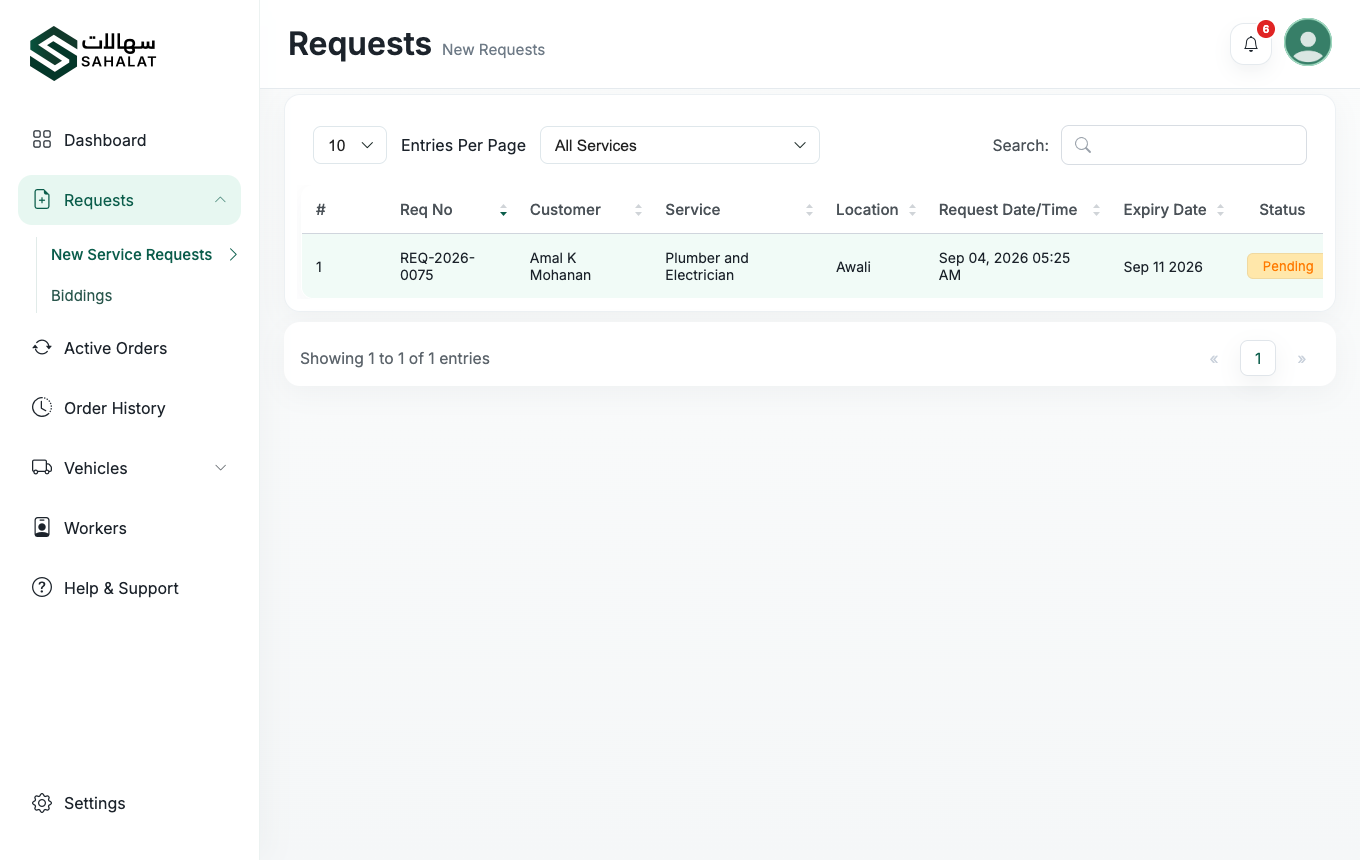
New Service Requests, showing the reference, customer, service, location and closing date. -
Read the full job
Open a request to see everything the customer entered: what they need, the location, the schedule, their description and any photos or documents they attached.
-
Ask a question if you need to
If you cannot price the job from the description, you can:
- Request a call — ask the customer's permission to phone them. Add a short message saying what you need to know.
- Request a site visit — ask to see the site before quoting. Most useful on construction work.
The customer accepts or declines. You can still send a price either way.
-
Send your price
Enter your bid amount, any discount, and notes covering what is included, how long it will take and your terms. The final amount — your price minus the discount — is what the customer sees.
For machinery hire you build the price from your registered machines: pick each machine, its daily rate, quantity and number of days, and the total adds up automatically.
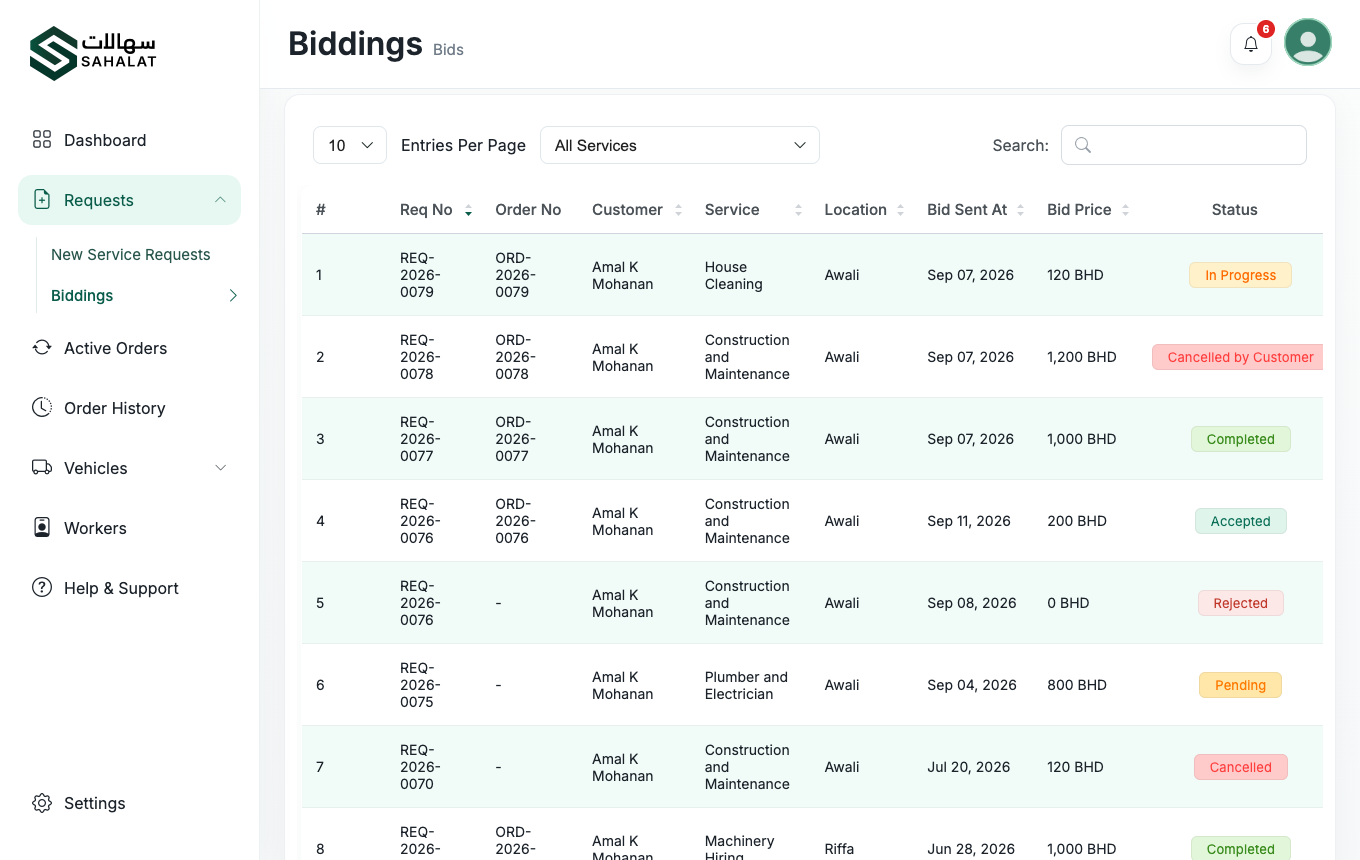
Biddings lists every offer you have sent and where it stands. -
Wait for the customer's decision
Track every offer under Requests → Biddings:
- Pending — the customer has not decided yet
- Accepted — you won the job and an order has been created
- Rejected — the customer chose someone else, or declined yours
- Expired — the request period ended before they decided
When a customer accepts an offer, every other offer on that job is declined automatically. A clear, complete quote that answers the customer's questions up front wins more often than the cheapest one.



 Continue with Google